How to Find Your Facebook Pixel ID
Your Facebook Pixel ID is the unique ID used to connect your Meta Pixel with Amote and track customer activities on your store.
Follow the steps below to find your Pixel ID.
Log in to Facebook Business Manager
Go to Facebook Business Manager and log in with the Facebook account connected to your business.
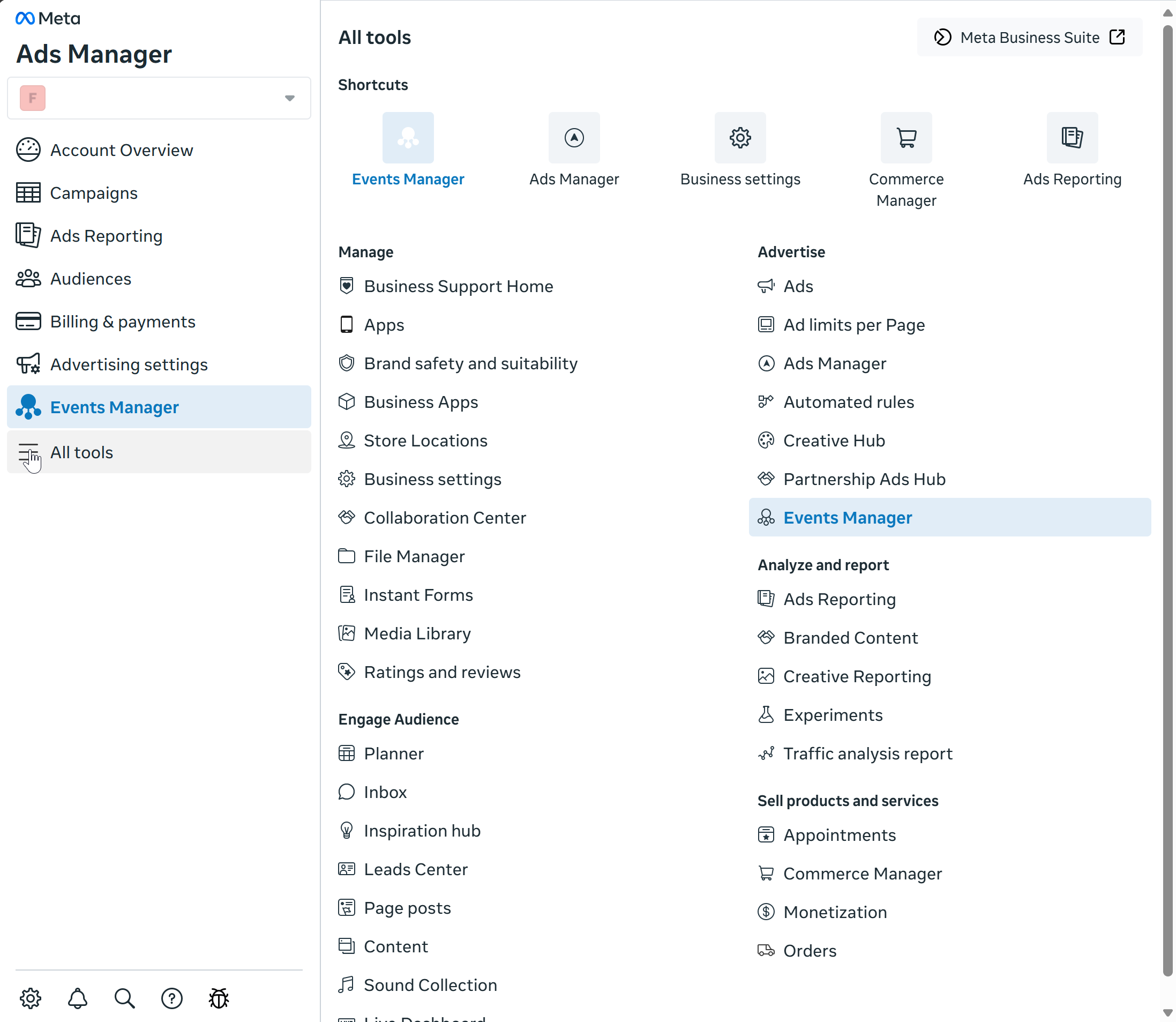
Open Events Manager
From your Meta Business account, open All tools and select Events Manager.
Events Manager is where you can view and manage the data sources connected to your business, including Meta Pixels.
Select the correct Business Account
If you manage multiple businesses, make sure you select the Business Account associated with the store you want to connect to Amote.
You can switch between Business Accounts from the account selector on the left side of Events Manager.
Find your Pixel ID
In Events Manager, go to Data Sources and select the Pixel you want to use.
Your Pixel ID will be displayed in the Pixel details or Overview section.
Click Copy next to the Pixel ID, then paste it into the required Facebook Pixel field in Amote.
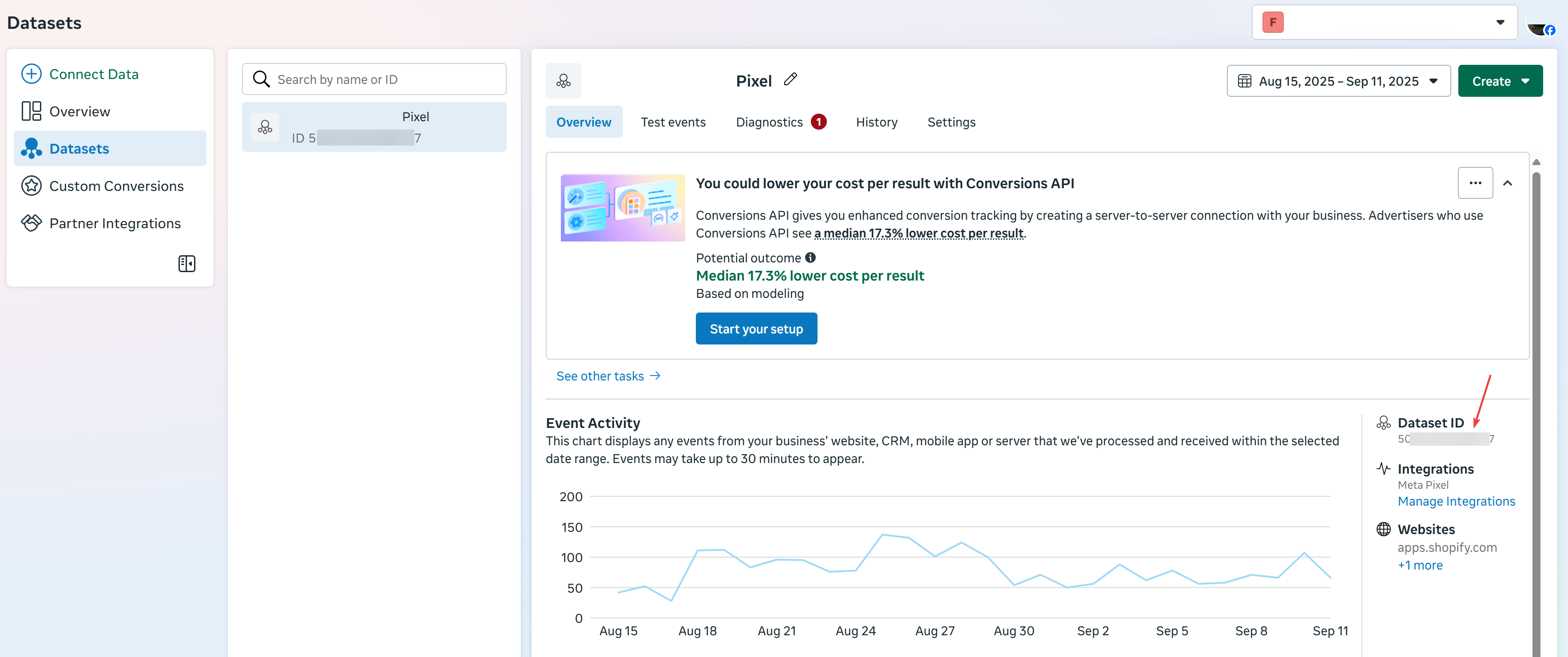
If you have multiple Pixels, make sure you copy the Pixel ID associated with the correct Shopify store.