How to Customize Price and Checkout section in Amote Cart Drawer?
This feature allows you to customize how pricing information and the checkout button appear in the cart drawer.
The subtotal, tax information, and checkout button are displayed at the bottom of the cart drawer and can be fully customized to fit your brand and messaging.
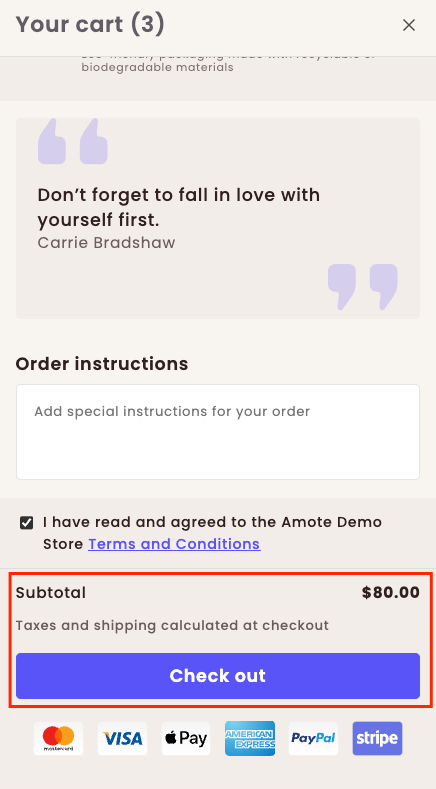
Step 1: Enable Amote in Your Theme
- Make sure the Amote app embed is enabled in your Theme Editor.
- Open Amote in your Shopify Admin.
- Go to Upsell & Cross-sell → Cart Drawer → Price & Checkout feature.
Step 2: Configure Settings and Customization
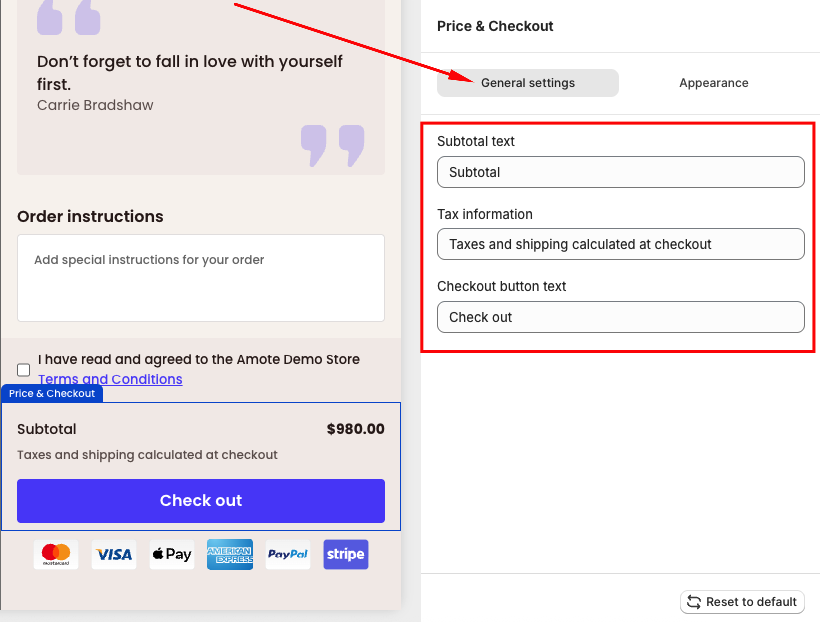
In General Settings, configure the content:
- Subtotal text: Customize the label shown for the cart subtotal (for example: Subtotal).
- Tax information: Edit the message related to taxes and fees (for example: Taxes calculated at checkout).
- Checkout button text: Change the checkout button label to match your store’s tone (for example: Check out).
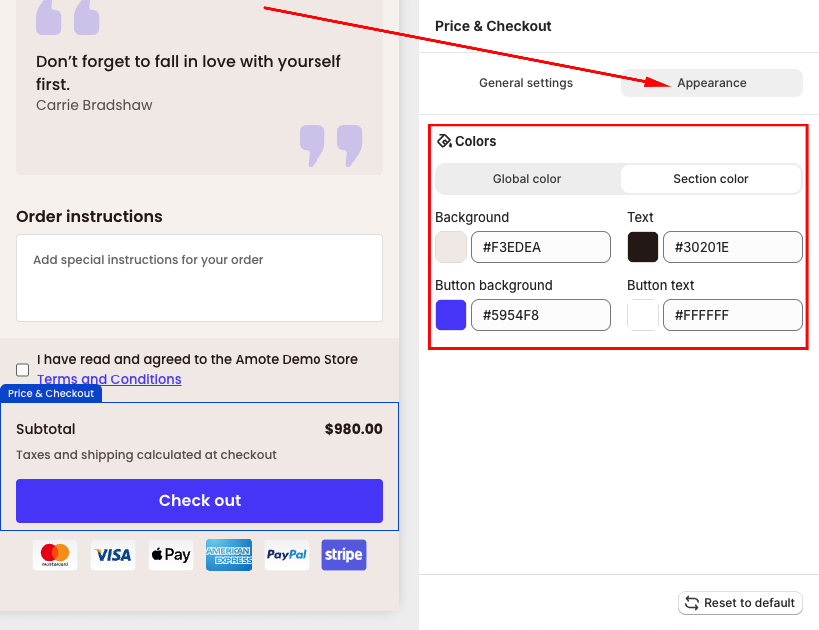
In the Appearance section, you can apply your Global colors or manually customize contents in Section Color:
Step 3: Save and Test
Click Save, then visit your storefront and add products to the cart to test how the Price & Checkout display on the cart drawer.
If you need further guidance or have any questions, don't hesitate to reach out to our support team via email at [email protected]. We'd be happy to help.