How to Set Up Add-ons in Amote Cart Drawer?
Add-ons allow you to increase revenue by offering optional extras—such as shipping protection, gift wrap, or special services—directly inside the cart drawer
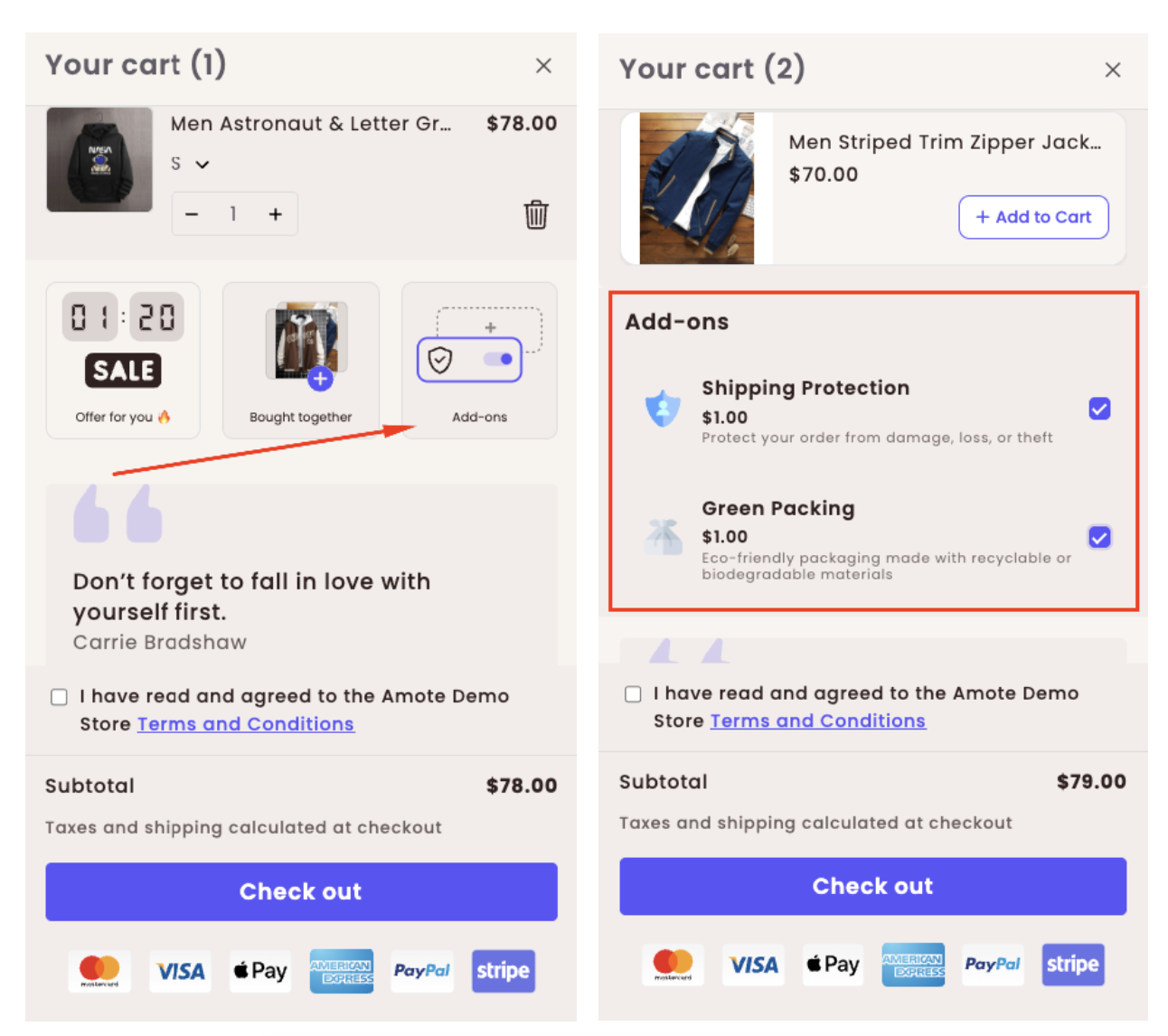
Step 1: Enable Amote in Your Theme
Make sure the Amote app embed is enabled in your Theme Editor.
Step 2: Enable Add-ons
- Open Amote in your Shopify Admin.
- Go to Upsell & Cross-sell → Cart Drawer.
- Enable Add-ons feature.
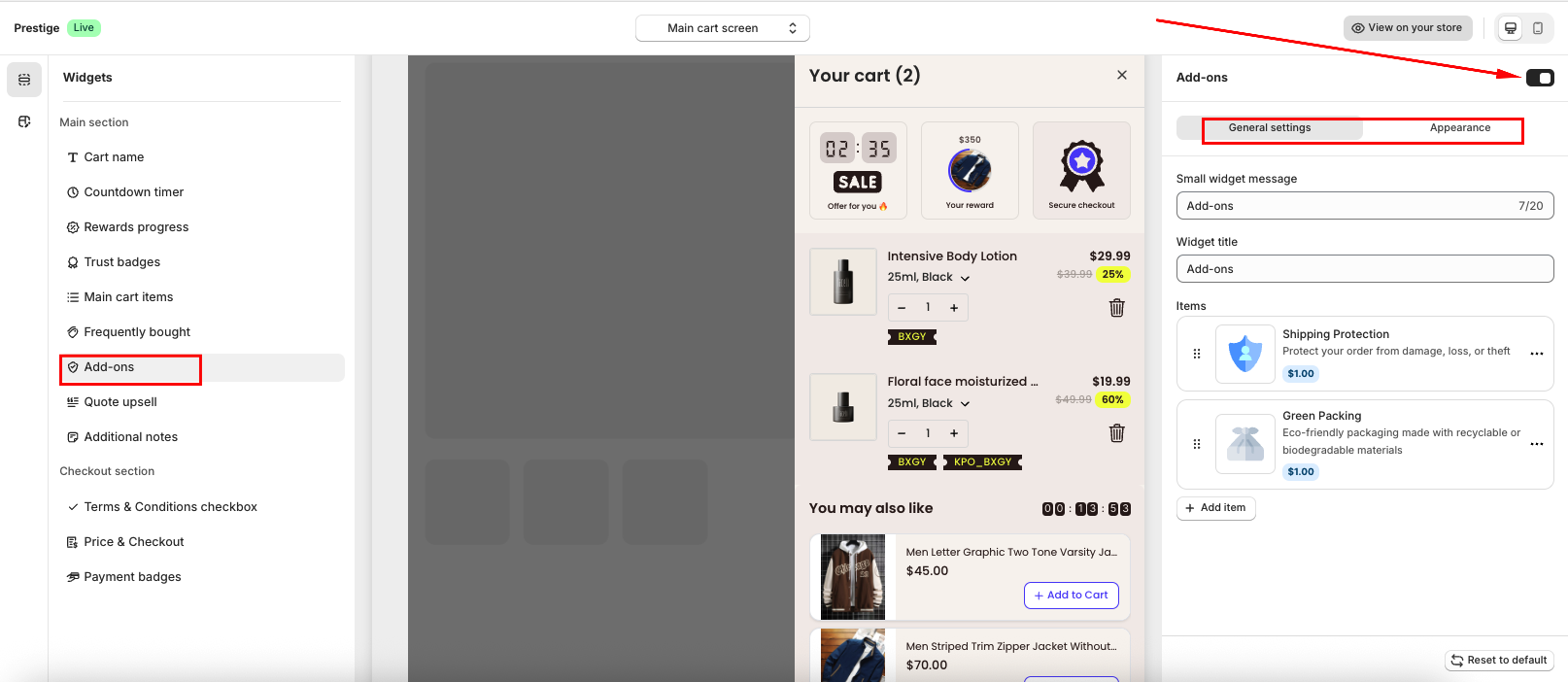
Step 3: Configure General Settings
In General Settings, configure the content and add-on items displayed in the cart drawer:
- Widget message: The message shown when using the Small Widget layout.
- Add-on items: Add and manage the items you want to offer to customers. Amote supports various add-on types, including:
- Shipping Protection
- Priority Processing
- Extended Warranty
- Expedited Shipping
- Mystery Product
- Gift Wrapping
- Green Packaging
- Donate for a Cause
- eBook
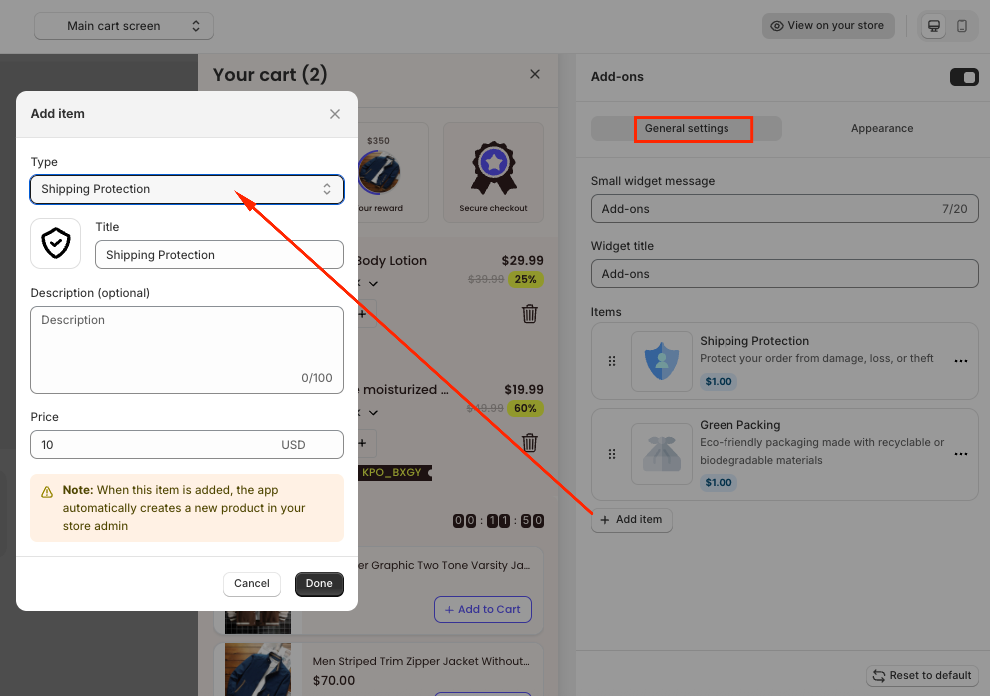
For each add-on item, you can customize:
- Title (product name)
- Description (optional)
- Price
- Image used to represent the item in the cart drawer
Note: When an add-on item is created and added by customers, Amote will automatically create a corresponding product in your Shopify Admin to ensure proper checkout and order tracking.
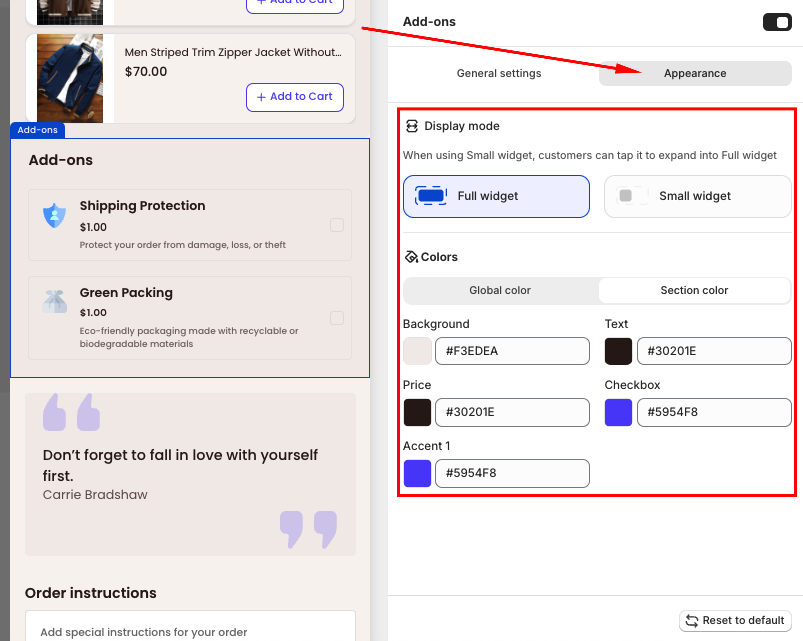
Step 4: Customize Appearance
In the Appearance section, you can:
- Choose the widget size (Small or Full Widget)
- Apply your Global colors or manually customize contents in Section Color
Step 5: Save and Test
Click Save, then visit your storefront:
- Add a product to the cart and open the cart drawer.
- Select an add-on and proceed to checkout to confirm if it works correctly.
If you need further guidance or have any questions, don't hesitate to reach out to our support team via email at [email protected]. We'd be happy to help.