How to Set Up Quote Upsell in Amote Cart Drawer?
Quote Upsell allow you to inspire trust by displaying short messages, testimonials, or reassuring statements directly inside the cart drawer. It helps customers feel more confident and encourages them to complete checkout.
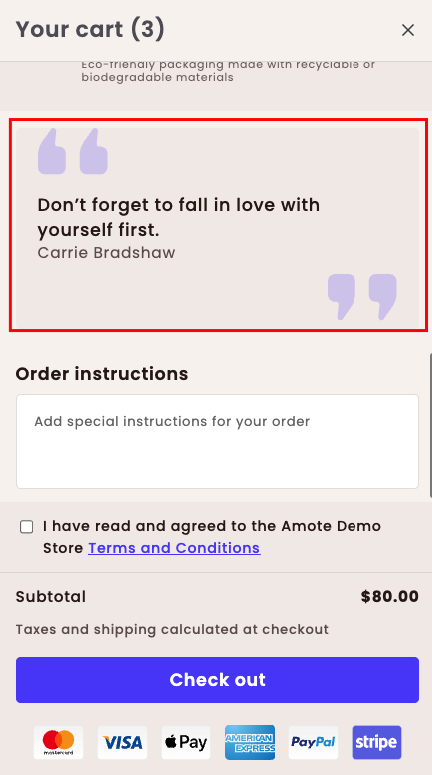
Step 1: Enable Amote in Your Theme
Make sure the Amote app embed is enabled in your Theme Editor.
Step 2: Enable Quotes Upsell
- Open Amote in your Shopify Admin.
- Go to Upsell & Cross-sell → Cart Drawer.
- Enable Quote upsell feature.
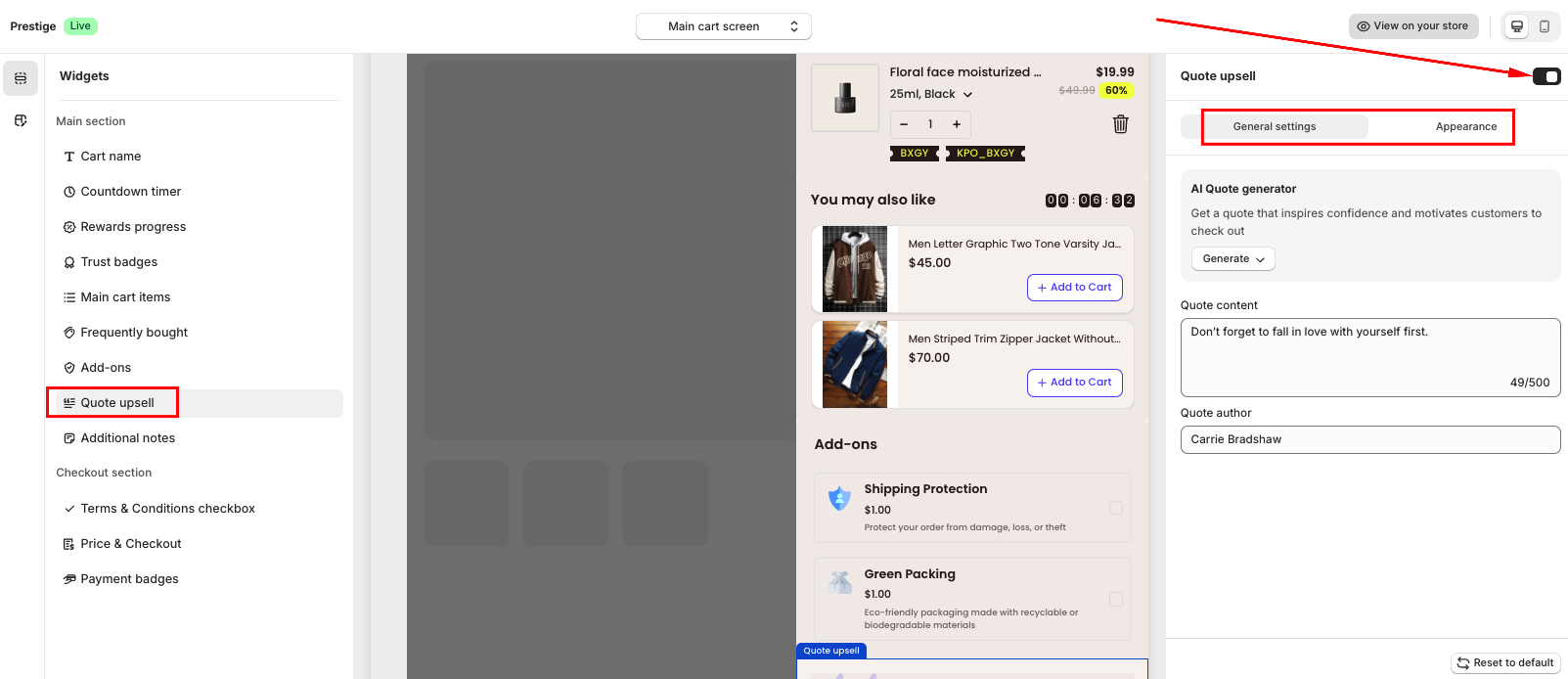
Step 3: Configure General Settings
In General Settings, set up your quote content using the AI Quote Generator or Choose from library:
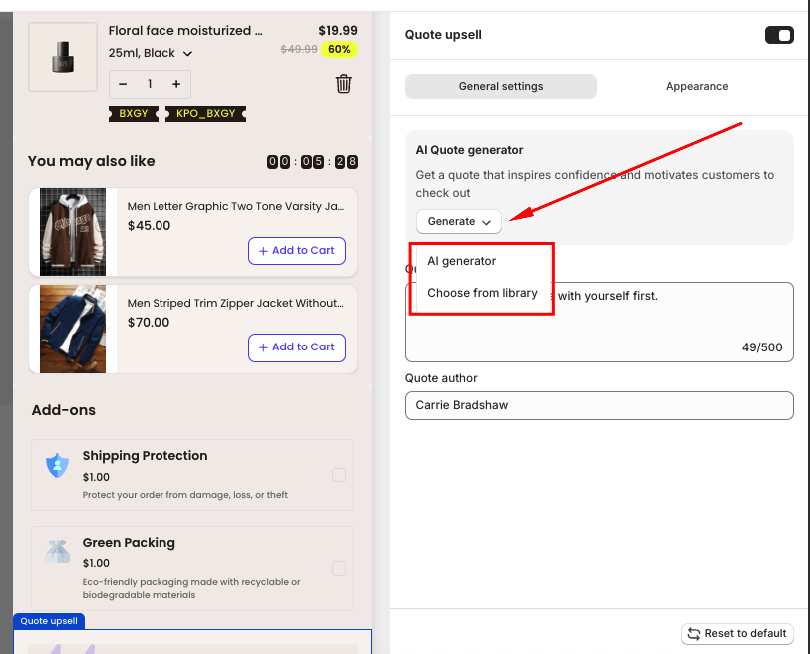
(1) AI Quote Generator: Use the built-in AI tool to generate professional quotes that match your brand. You can select the Category, Language, and Tone of voice to fit your store style.
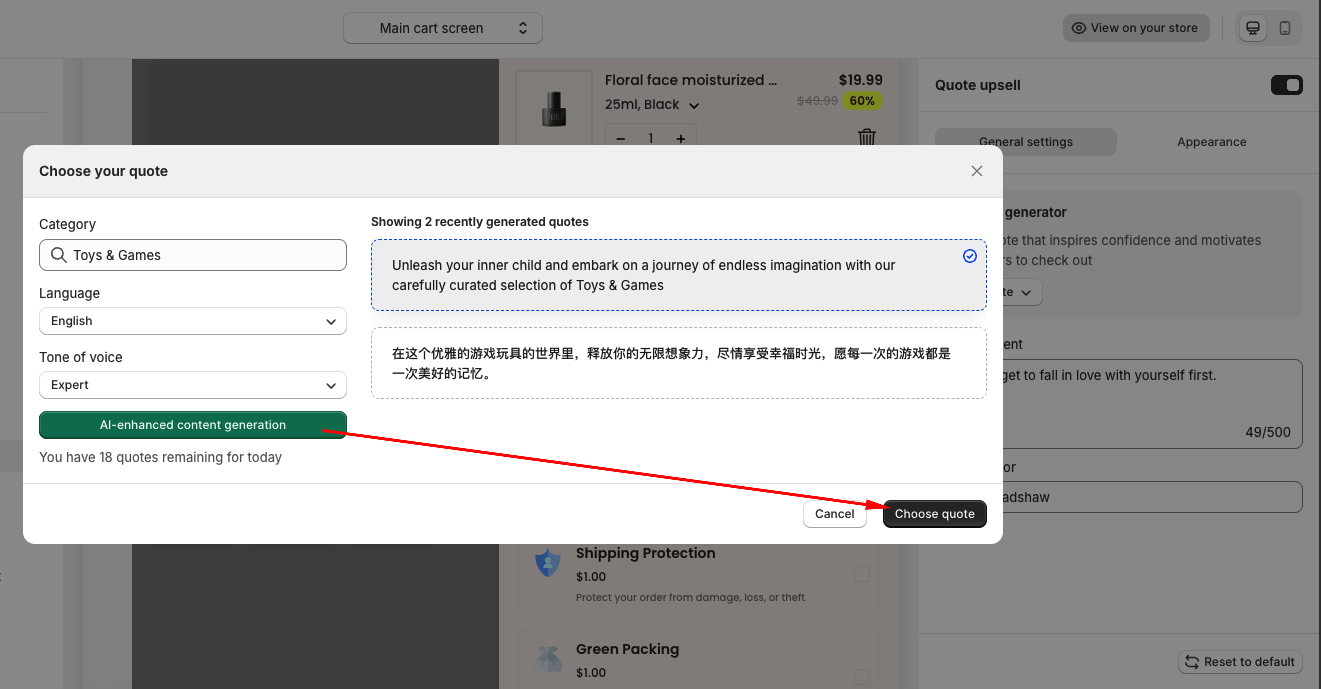
(2) Choose from library: select the suitable quote for your brand based on our suggested caregory:
- Alternatively, you can manually enter the Quote content and Quote author.
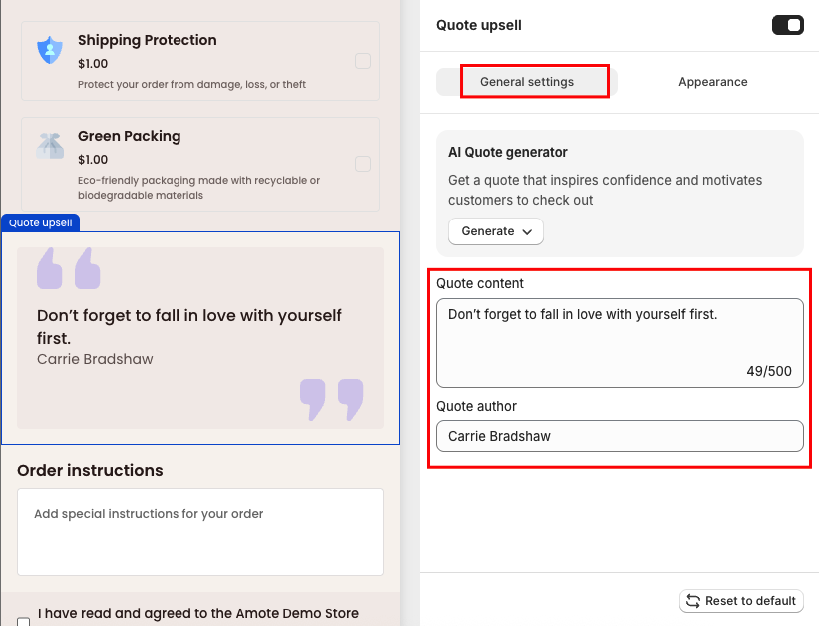
Step 4: Customize Appearance
In the Appearance section, you can:
- Choose the widget size (Small or Full Widget)
- Apply your Global colors or manually customize contents in Section Color
Step 5: Save and Test
Click Save, then visit your storefront and add products to the cart to test how the Quote displays.
If you need further guidance or have any questions, don't hesitate to reach out to our support team via email at [email protected]. We'd be happy to help.