How to set up Trust Badges in Amote Cart Drawer?
Trust Badges help build customer confidence before checkout by highlighting key trust signals such as secure payments, fast shipping, and buyer protection. Displaying these badges inside the cart drawer reassures customers and helps reduce cart abandonment.
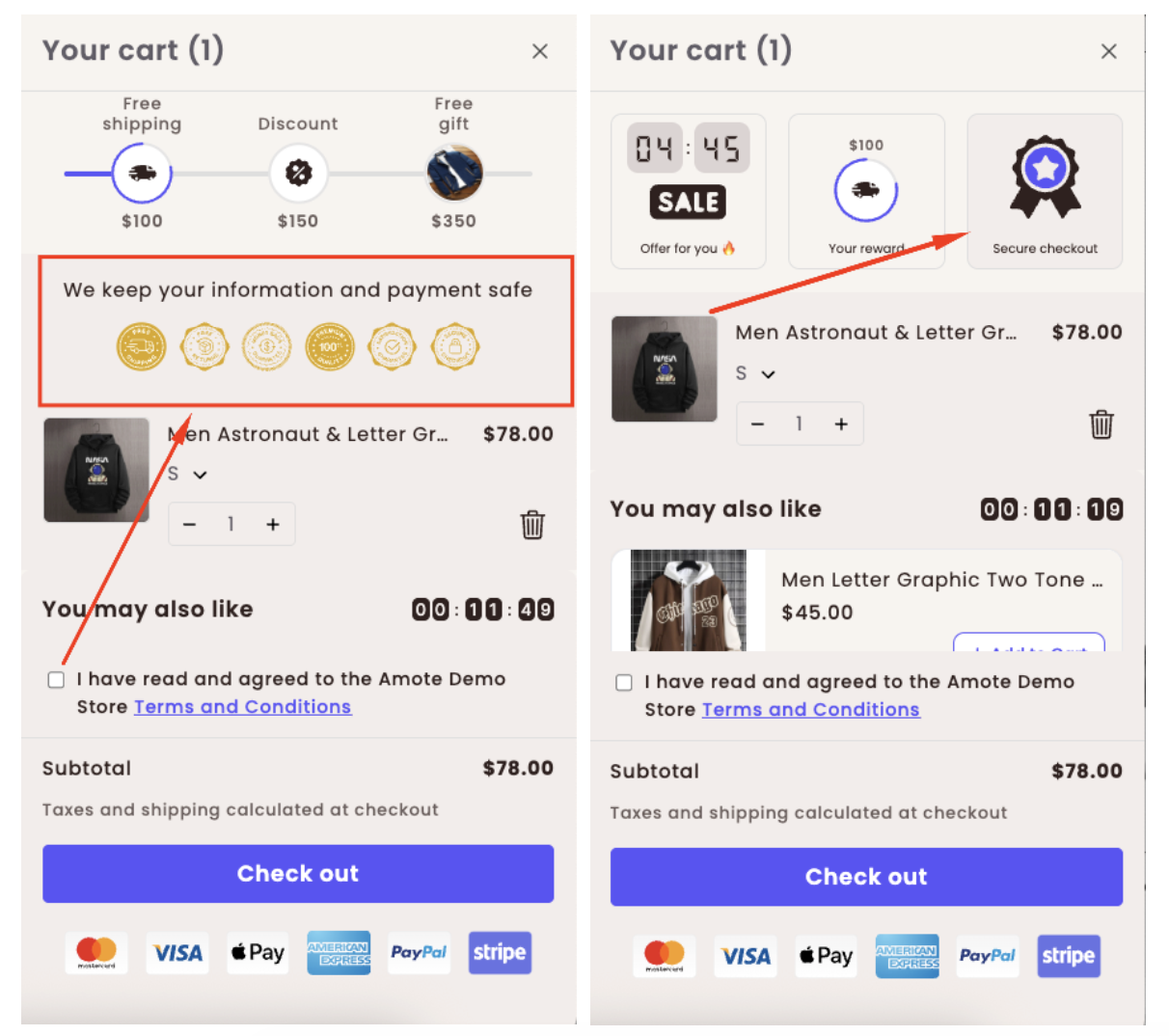
Step 1: Enable Amote in Your Theme
Make sure the Amote app embed is enabled in your Theme Editor.
Step 2: Enable Trust Badges
- Open Amote in your Shopify Admin.
- Go to Upsell & Cross-sell → Trust Badges.
- Enable Trust Badges.
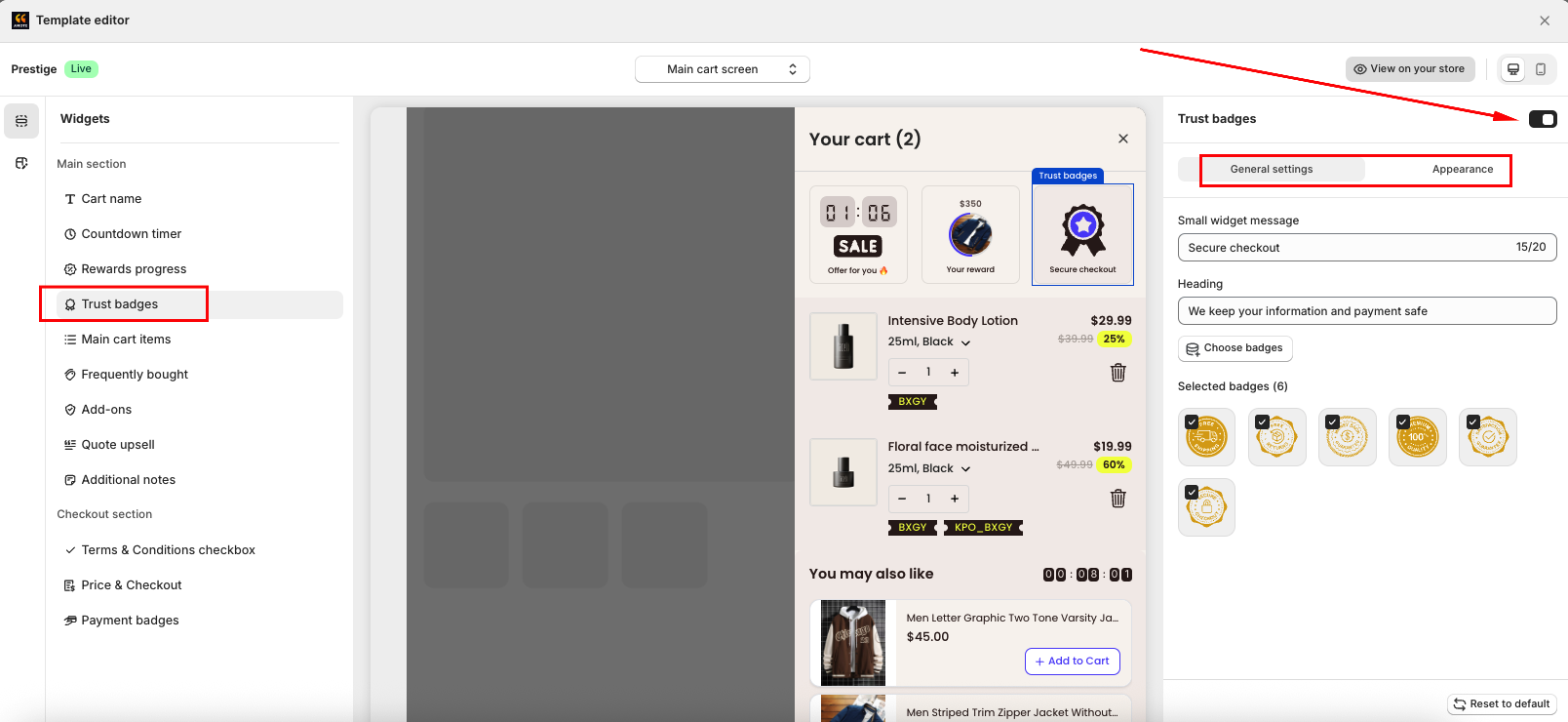
You will see two main sections:
- General Settings - Configure content and product recommendations
- Appearance - Customize the widget design
Step 3: Configure General Settings
In General Settings, configure the content and behavior of the Trust Badges section:
- Widget message: The message displayed when using the Small Widget layout.
- Heading: The title shown above the Trust Badges section.
- Choose badges: Select which trust badges you want to display, such as secure payment, fast shipping, or buyer protection.
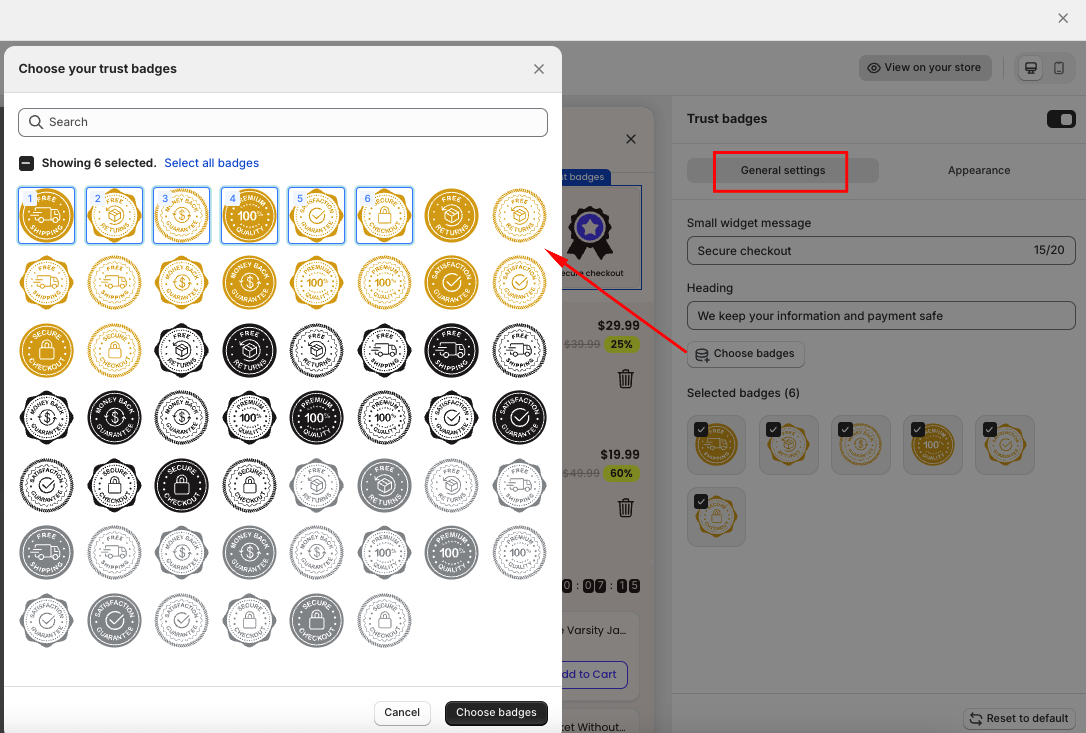
Step 4: Customize Appearance
In the Appearance section, you can:
- Choose the widget size (Small or Full Widget)
- Apply your Global colors or manually customize contents in Section Color
Step 5: Save and Test
Click Save, then visit your storefront:
- Add a product to the cart drawer.
- Check that Trust Badges appear correctly.
If you need further guidance or have any questions, don't hesitate to reach out to our support team via email at [email protected]. We'd be happy to help.