How to Set Up Terms & Conditions checkbox in Amote Cart Drawer?
The Terms & Conditions Checkbox requires customers to confirm their agreement with your store’s terms before checkout. It helps merchants ensure compliance, clearly communicate policies, and reduce post-purchase disputes.
The feature appears as a mandatory checkbox inside the cart drawer. Customers must check the box to continue to checkout.
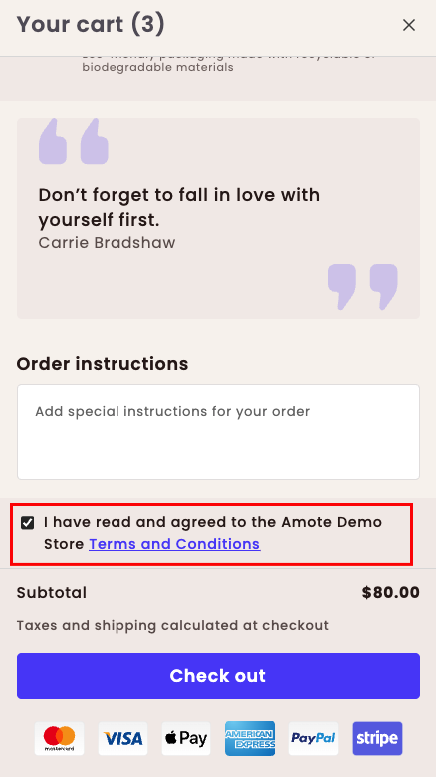
Step 1: Enable Amote in Your Theme
Make sure the Amote app embed is enabled in your Theme Editor.
Step 2: Enable Terms & Conditions Checkbox
- Open Amote in your Shopify Admin.
- Go to Upsell & Cross-sell → Cart Drawer.
- Enable the Terms & Conditions Checkbox feature.
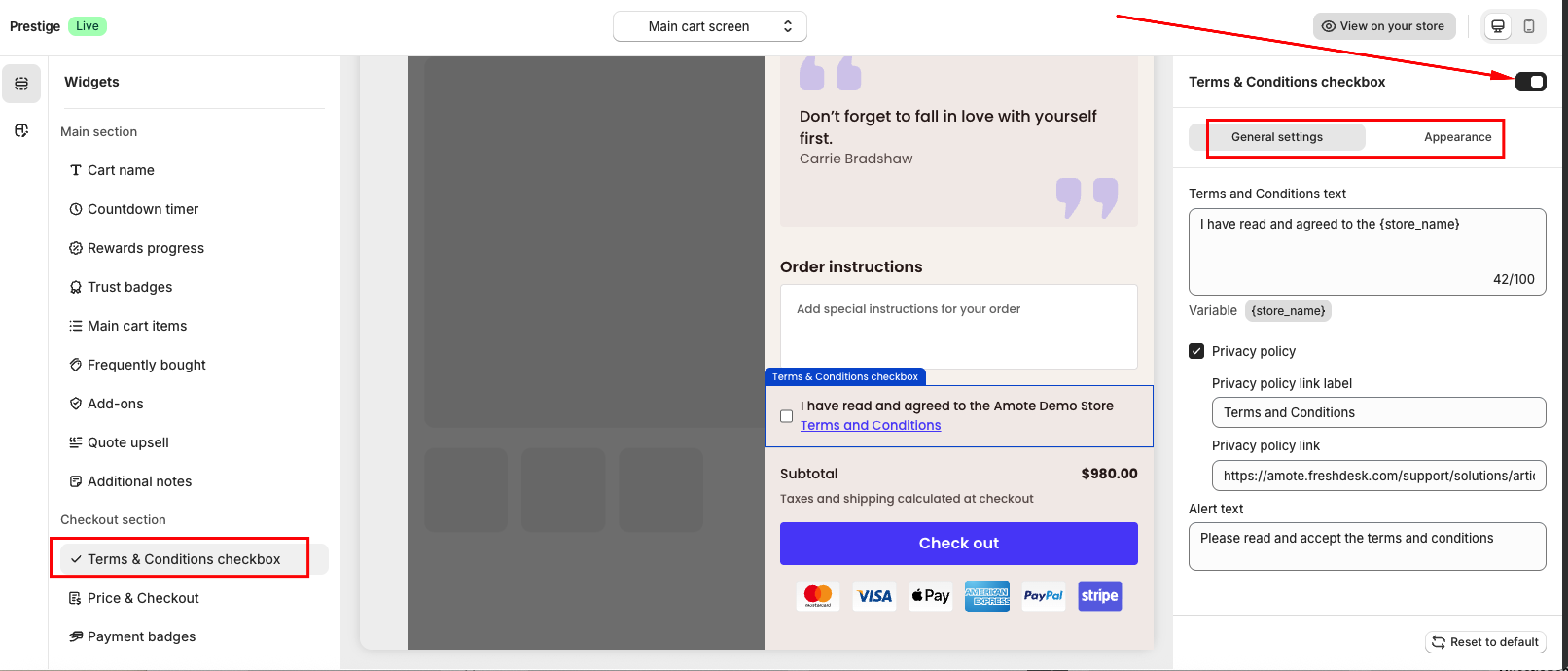
Step 3: Configure Settings and Customization
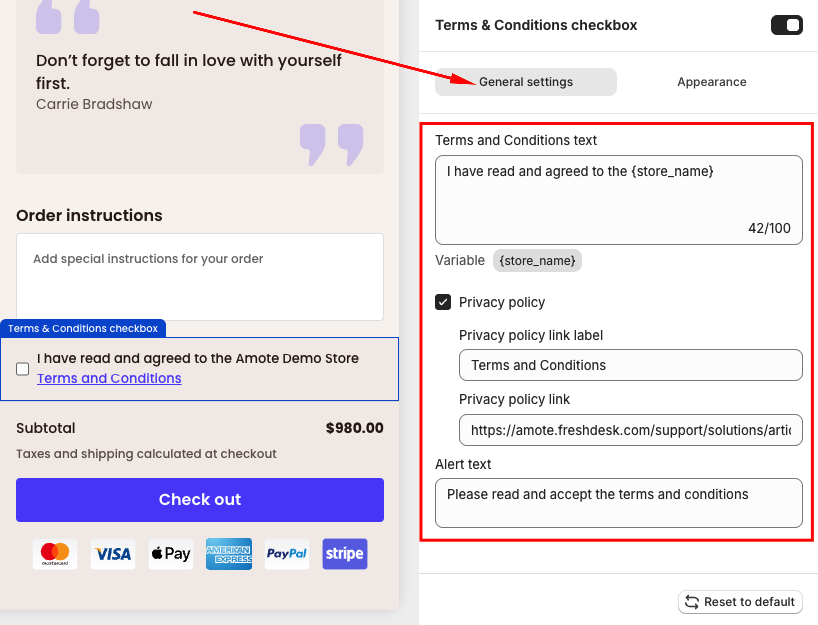
In General Settings, configure the checkbox content:
- Terms & Conditions text: The message customers must agree to (for example: I agree to the Terms & Conditions)
- Privacy Policy: Insert the Privacy Policy link label and Link to your Terms & Conditions page (Optional)
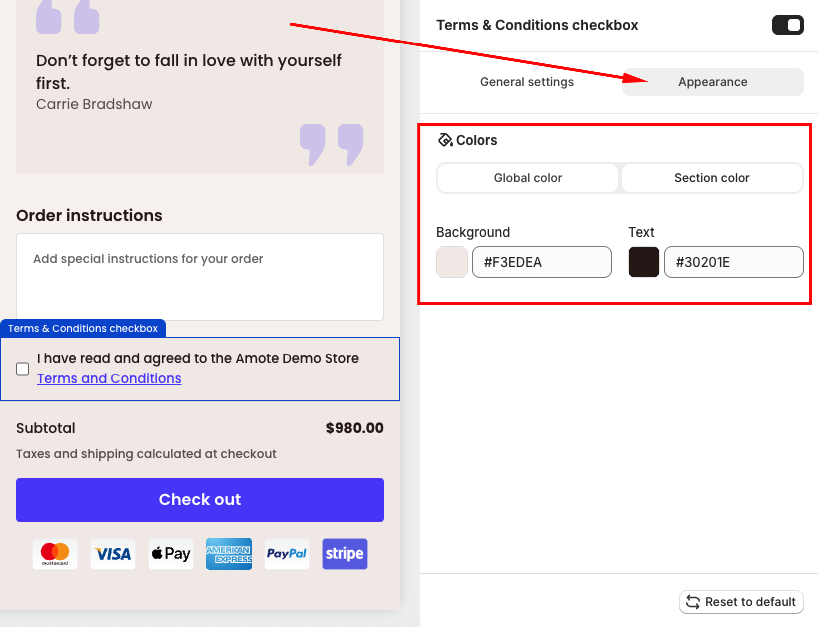
In the Appearance section, you can change the color for Terms & Conditions content:
Step 4: Save and Test
Click Save, then visit your storefront and add products to the cart to test how the Terms & Conditions checkbox displays.
If you need further guidance or have any questions, don't hesitate to reach out to our support team via email at [email protected]. We'd be happy to help.